User Guide
Step-by-step instructions for turning hymn and worship-song lyrics into slides
Overview
Song Slides turns hymn and worship-song lyrics into clean, projector-ready slides—free, with no signup and no watermarks. This guide walks through the three steps of the builder: choosing your lyrics, adding an optional background, and downloading your slides as PowerPoint, PDF, or images.
Step 1 — Choose your lyrics
Start by telling Song Slides which lyrics to put on your slides. You have two ways to do this:
-
Public-domain hymn. Select a hymnal, then search by title or number and pick a hymn
from the list. The lyrics load automatically, already split into slides.
Pro tip: browse the full hymn library if you want to explore titles before you build, or jump to a themed collection.
-
Paste your own lyrics. Type or paste lyrics directly. Separate each slide (verse,
chorus, etc.) with a blank line, and label lines like “Chorus” are kept as you wrote them.
You can also Import a file—ChordPro (
.cho,.crd,.chordpro,.pro), plain text (.txt), or OpenSong / OpenLyrics (.xml). Use Clean up pasted text to tidy spacing, and any chords are removed automatically. -
Review how the lyrics break into slides. Adjust the blank lines between sections until each slide
holds the right amount of text for your screens.
Pasted or imported lyrics are processed temporarily for previews and downloads. You are responsible for holding the appropriate license (for example, CCLI) for any copyrighted song you bring in.
Step 2 — Add a background (optional)
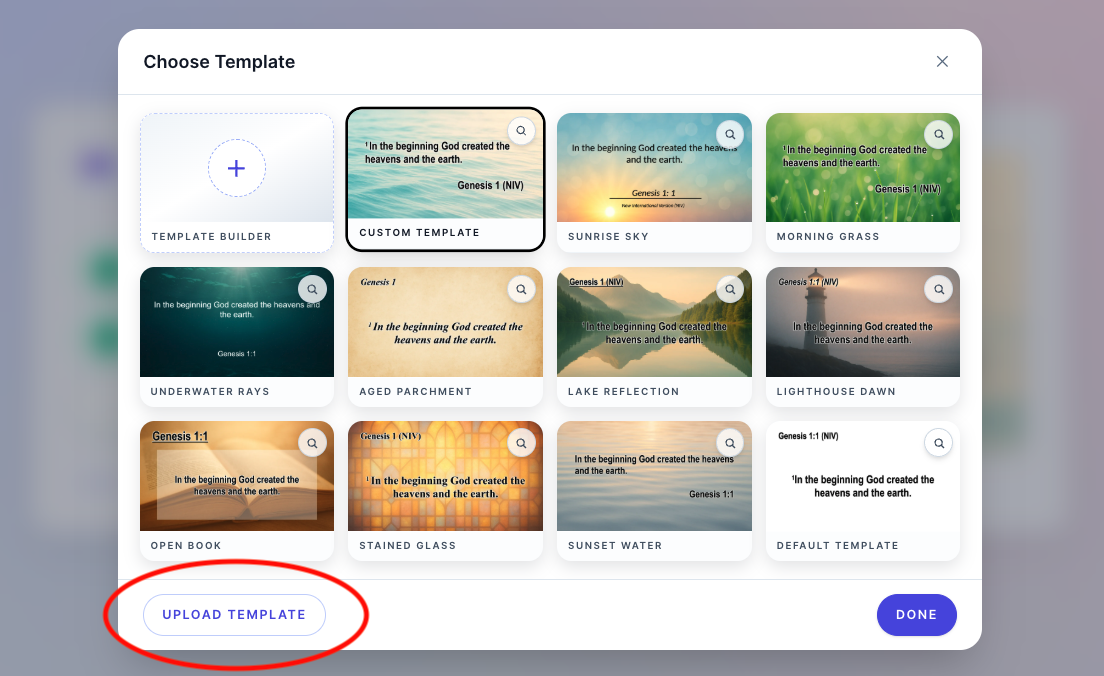
- Once your lyrics are set, move to the Background step.
- Pick a background image from the grid to set the look of every lyric slide at once.
- Prefer a plain look? Choose none to keep slides clean and text-forward.
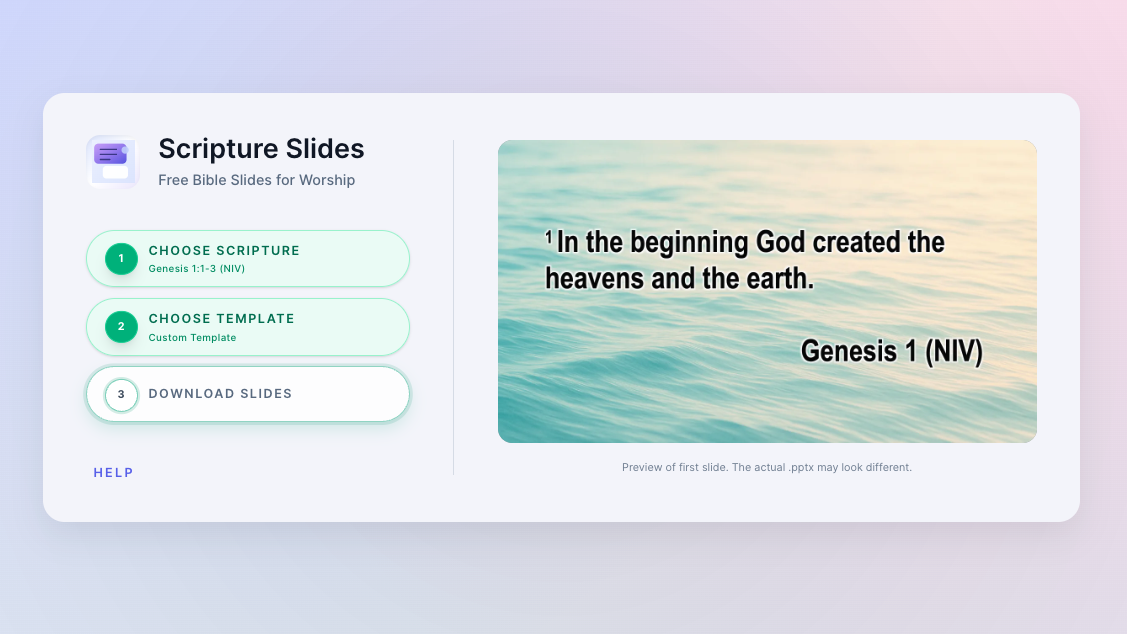
- The first-slide preview updates after rendering so you can check the chosen template.
Choose No Background and confirm the template step for readable text on a plain slide.
Step 3 — Download your slides
When your lyrics and background look right, head to the Download step and choose the format that fits your worship software:
-
PowerPoint (
.pptx) — open and edit in PowerPoint, Keynote, or Google Slides, or drop straight into ProPresenter and similar tools. - PDF — a fixed, print-ready file that looks the same on any device.
-
Images (
.zip) — one image per slide, handy for software that imports backgrounds or static images.
Not sure which to pick? PowerPoint is the most flexible if you want to keep editing; images are easiest if your projection software just needs one picture per slide.
Step 4 — Preview and refine
- Use the first-slide preview to check text size and contrast. Open the downloaded deck to check every slide.
- If a slide is too crowded, go back to Step 1 and add a blank line to split it into two.
- Try a different background—or none—if the text is hard to read, then download again.
Once you’re happy with the preview, click “Download” and grab your slides as a
PowerPoint .pptx deck, a PDF, or a .zip of images.
FAQ
How do I split lyrics across more slides?
Song Slides creates a new slide wherever it finds a blank line. To break a long verse into two slides, add a blank line at the point you want the split. To keep lines together on one slide, remove the blank line between them.
Why doesn't the preview match PowerPoint exactly?
We use a different rendering engine (not PowerPoint directly) to generate the in-app preview, which
can lead to slight differences in fonts, spacing, or layout. Always download the .pptx
file and open it in PowerPoint to confirm the final look, or export to PDF or images instead.
Can I use copyrighted worship songs?
Public-domain hymns are free to use. For copyrighted songs, you paste your own lyrics and you are responsible for holding the appropriate license (for example, CCLI). Pasted and imported lyrics are not stored by Song Slides. Still have a question? Email us at contact@scripture2slides.com.
Do I have to add a background?
No. Backgrounds are optional—choose “none” to keep your lyric slides clean and text-forward.